Smart Home Troubleshooting Guide: Why Your Devices Go Offline and How to Fix Them
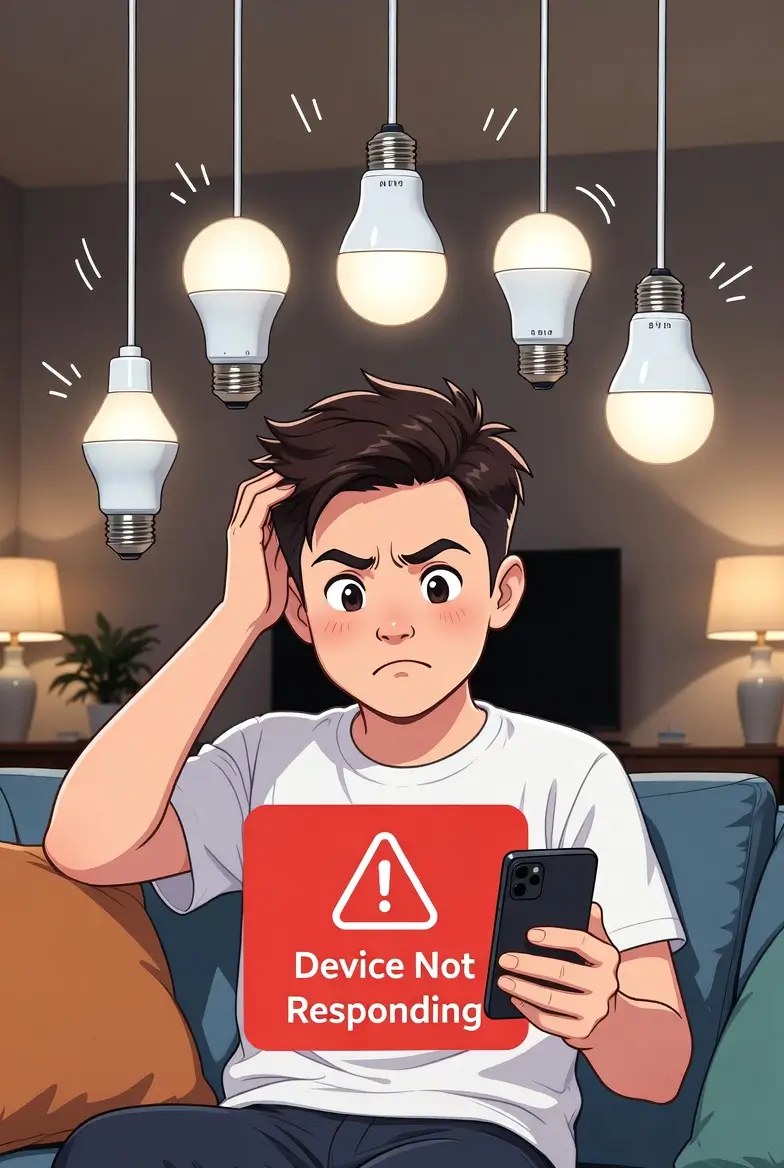
When your voice assistant replies “the device isn’t responding,” your blood pressure rises. This smart home troubleshooting guide runs through the most frequent culprits overloaded Wi‑Fi, Zigbee channel interference, weak mesh networks and gives you the exact steps to bring everything back online. Keep this smart home troubleshooting guide bookmarked; you’ll need it.
Fix 1: Check Wi‑Fi Congestion
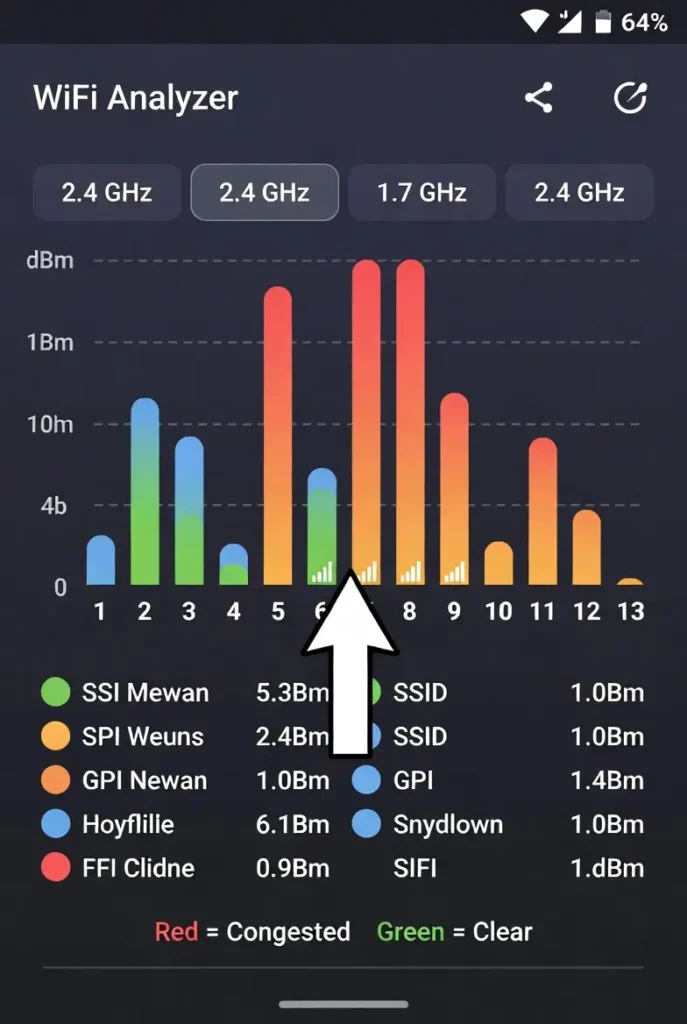
Too many Wi‑Fi devices on the 2.4 GHz band can cause packet loss and lag. Use a free Wi‑Fi analyser app (WiFiman, NetSpot) on your phone to see which channels your neighbours are using. If your channel is crowded, log into your router and switch to a less congested channel (1, 6, or 11 for 2.4 GHz). If your router supports it, enable band steering to push devices to 5 GHz where possible. This single step solves a surprising number of problems in any smart home troubleshooting guide.
Fix 2: Zigbee Channel Interference
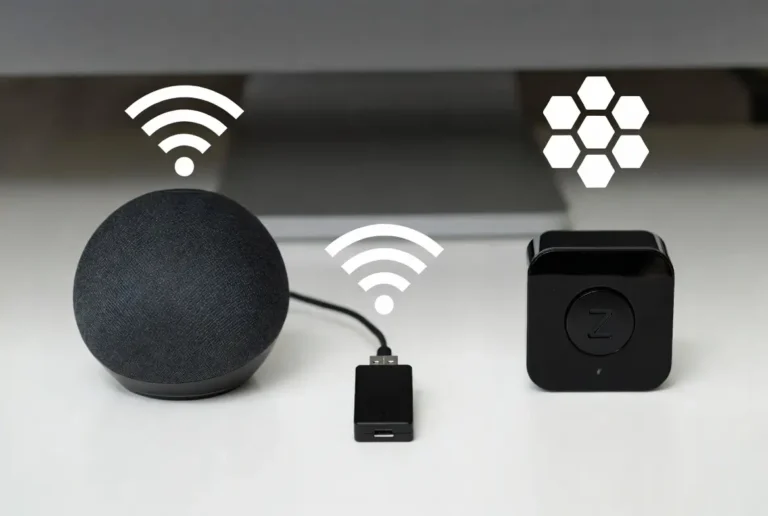
Zigbee operates on the same 2.4 GHz band as Wi‑Fi, so they can step on each other. In a smart home troubleshooting guide, the rule is to separate them: if your Wi‑Fi is on channel 1, set Zigbee to channel 25; if Wi‑Fi is on 6, Zigbee to 20; if Wi‑Fi is on 11, Zigbee to 15. In Home Assistant ZHA or Zigbee2MQTT, change the channel in the integration settings. Then re‑pair any devices that go offline during the change. A clear channel separation instantly stabilises a flaky Zigbee network.
Fix 3: Rebuild Your Mesh Network
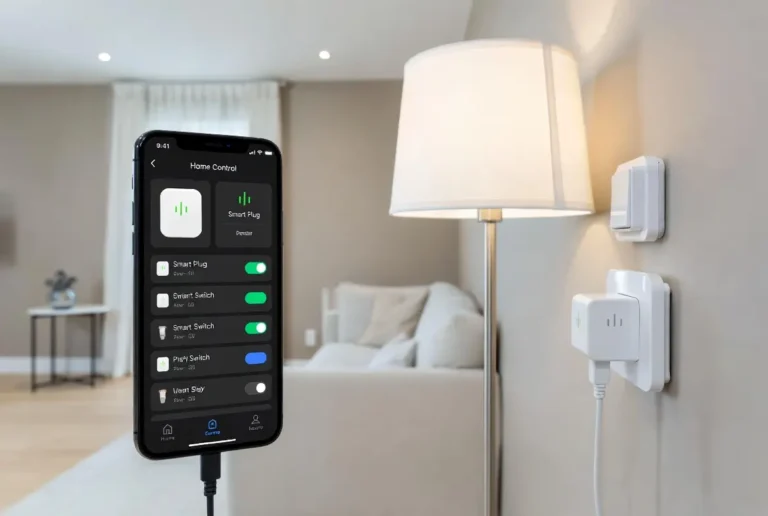
Mesh networks (Zigbee and Z‑Wave) get stronger with more mains‑powered devices that act as repeaters. If a far‑off sensor keeps dropping, add a smart plug or a dedicated repeater halfway between the hub and the sensor. In the smart home troubleshooting guide world, a strong mesh can survive a router reboot without losing a single device. After adding repeaters, use your hub’s “heal” or “repair” network function to re‑route paths.
Fix 4: Simplify Over‑Complex Automations
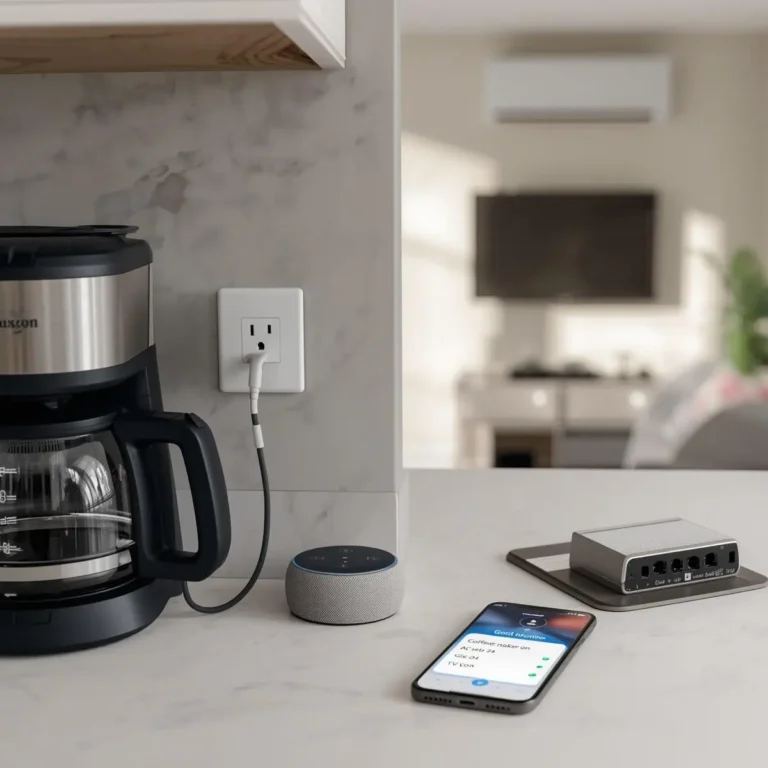
Sometimes the problem isn’t the hardware it’s the logic. An automation with too many steps, or that calls a cloud service (like IFTTT) in the middle, introduces lag. In your smart home troubleshooting guide process, break complex routines into smaller scenes, and move as much as possible to local execution (Home Assistant or Hubitat). A direct “motion sensor → light on” automation responds in milliseconds. A “motion → cloud → IFTTT → cloud → light” chain takes seconds.